
PIN when a locked app opens
A cover appears first. Then enter your PIN. Fingerprint or face unlock is optional.
Android app lock
XLockSpace asks for a 6-digit PIN when you open a locked app. You can hide selected apps from the home screen by setting XLockSpace as the default Home.
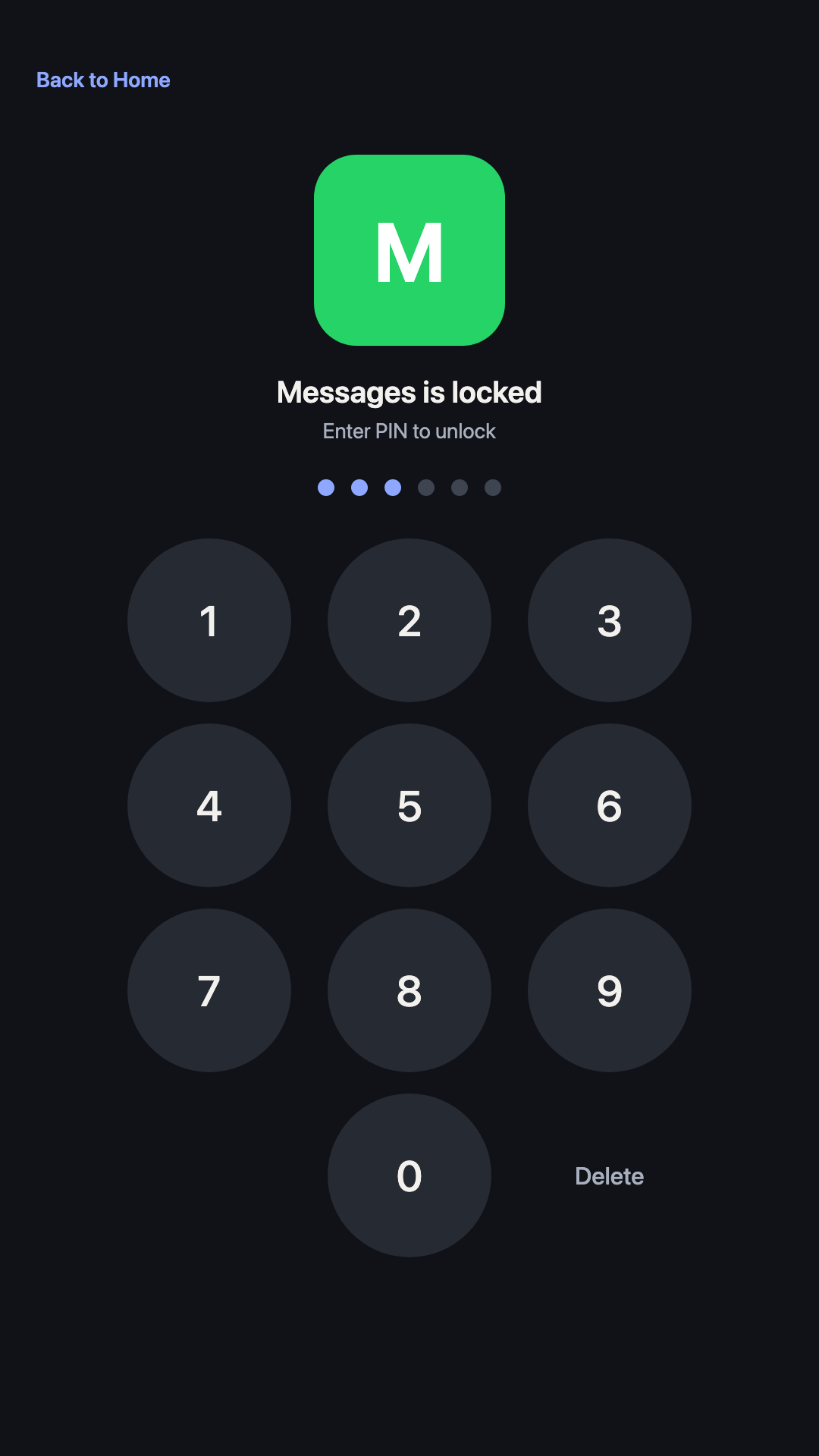
A cover appears first. Then enter your PIN. Fingerprint or face unlock is optional.
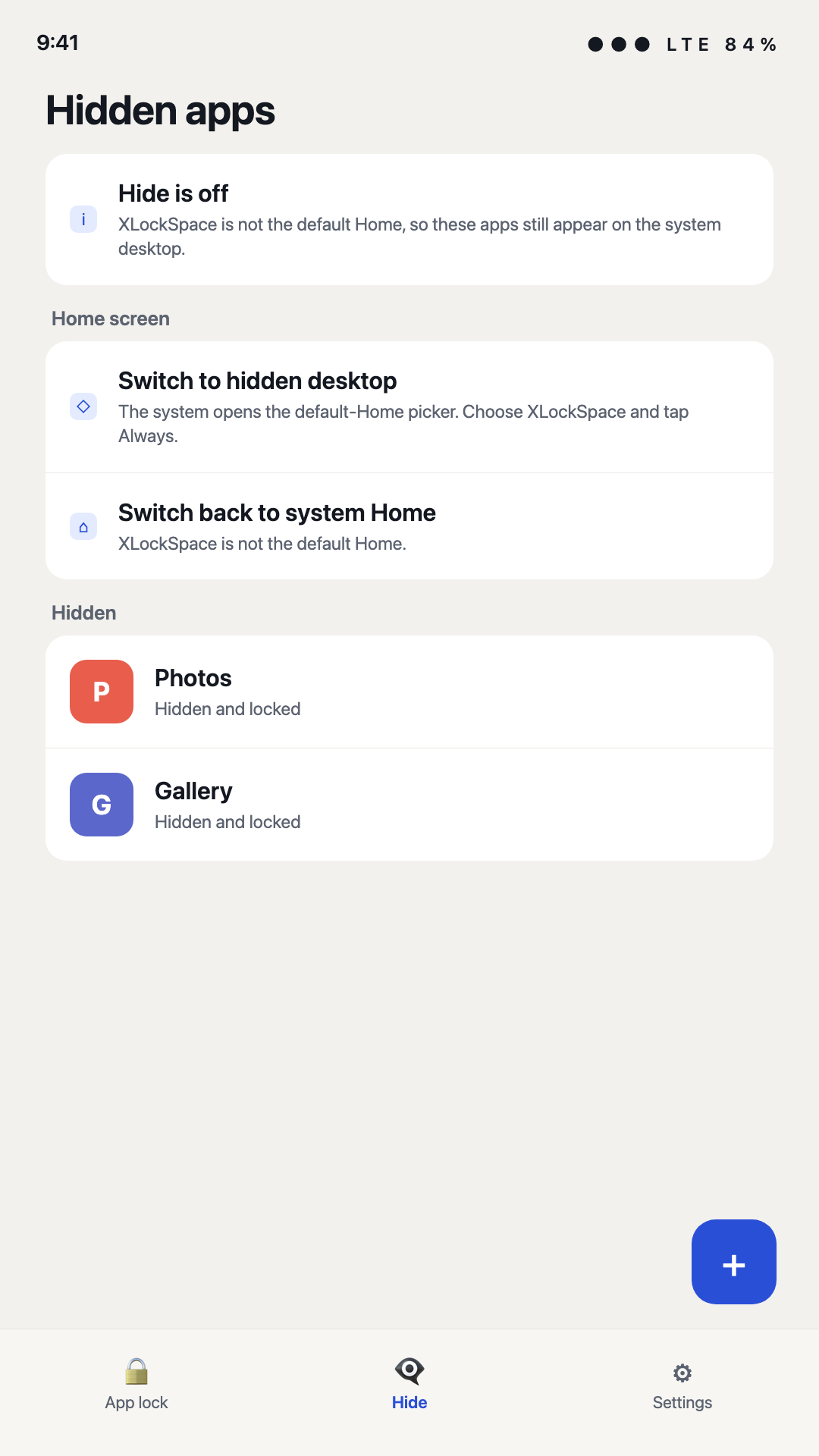
Set XLockSpace as the default Home. Hidden apps leave the desktop and stay locked.
An unlocked app can stay open until the screen turns off. Unlock-one-unlocks-all is optional.
Change the tile icon, title, and text. That is how you open XLockSpace from the shade.
Remember it. If you forget, you must clear app data. The lock and hide lists are lost.
Usage access sees which app opened. Display over other apps covers it immediately. Add a battery whitelist so the lock keeps running.
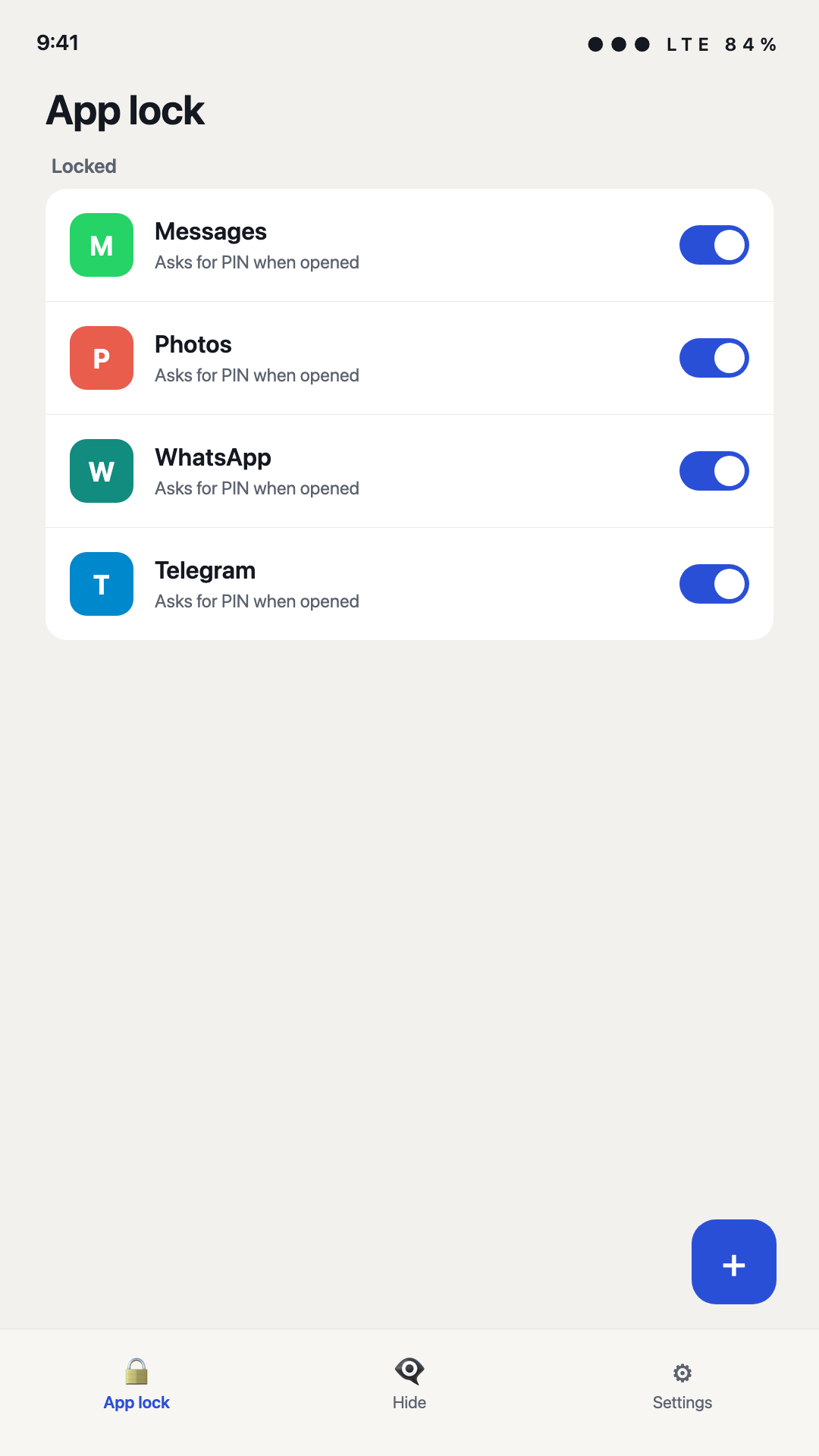
Add apps on App lock. To hide icons, add them on Hide, set XLockSpace as default Home, and tap Always.
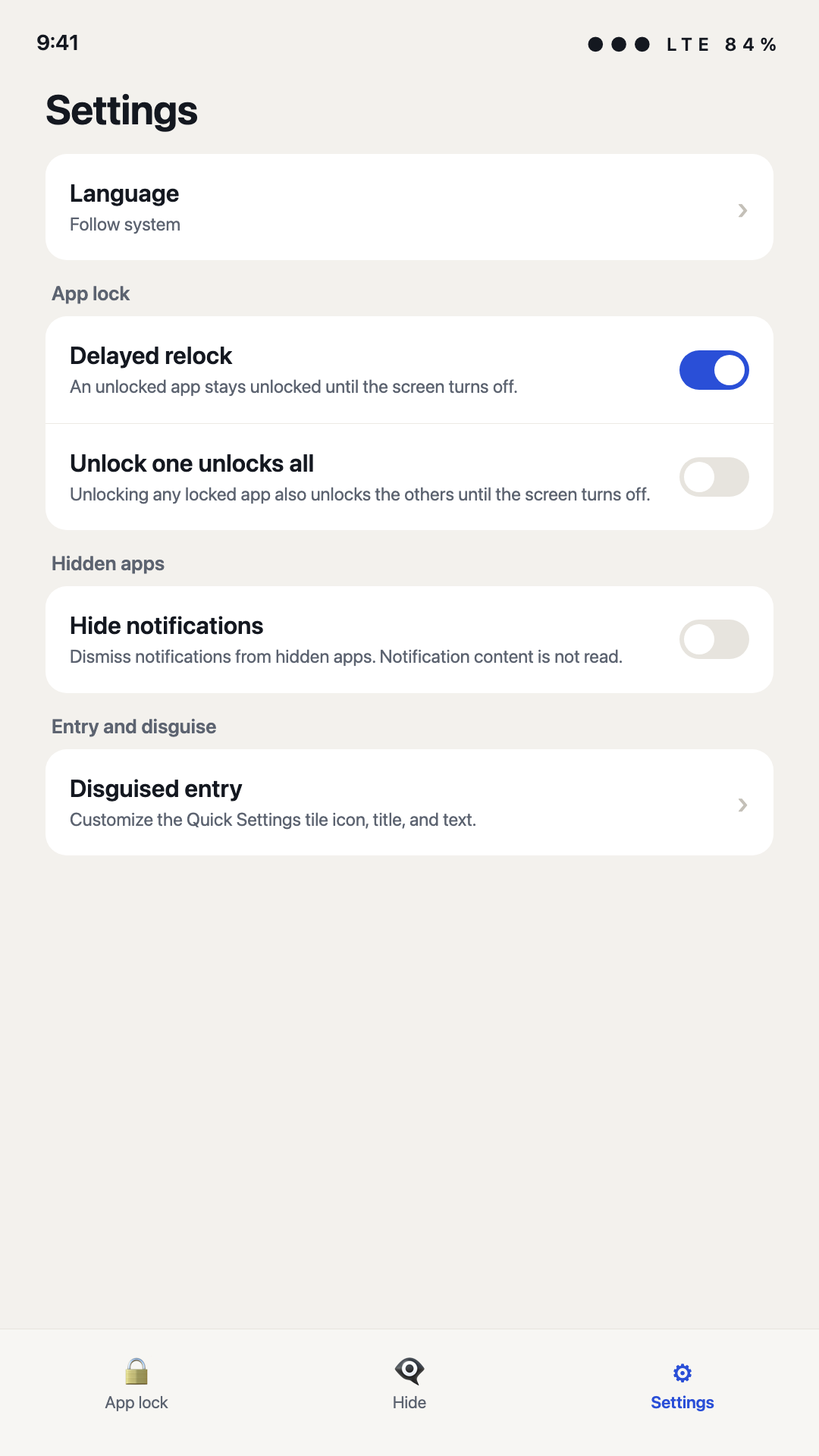
English is the default. Follow system uses the phone language.
Clear XLockSpace app data in system settings. There is no remote reset. Your lock and hide lists are deleted with the PIN.
No. Hidden apps still appear in Settings → Apps and in stores. Hide only removes them from the XLockSpace home screen.
Usage access is used only to see which app came to the foreground. Optional notification access dismisses hidden-app notifications by package name. Content is not read.
No account, no ads, no analytics SDK. Cloud backup is off. Your PIN is stored as a one-way hash on the device.